Tools of the Trade: AI Edition
These are the key tools a Microsoft Access developer needs to unlock the full potential of AI-assisted software development workflows.


Before I get too far into my writing on AI, it occurred to me that I should provide some context for what I mean when I talk about AI-assisted software development.
People use the term "AI coding" to mean everything from copying and pasting code back and forth between ChatGPT and the IDE to vibe coding an entire application with a single prompt. I think the best–or at least the most concise–way for me to provide you with a point of reference for how I define the term is to tell you a bit about my development environment and daily workflow.
Claude Code
This is my workhorse.
I have a Team subscription. Most of my developers are on the $100/mo Premium plan. One of our developers uses Cursor, mainly because they work on a project for a client where the client dictates the use of (and covers the licensing cost for) that tool.
My sense is that Claude Code is better if you have the AI write most of your code for you; Cursor is better for the AI-driven, autocomplete-code-as-you-write-it workflow. Both tools support both workflows.
Cursor is a bit more future-proof in that you are not locked into models from a single vendor. On the other hand, Anthropic's models are currently the best available for writing code, so model selection is less of a differentiator at the moment.
If you aren't already using one of these tools, I would recommend you pick one and just go with it. Be prepared to revisit your choice every six months or so (the AI landscape changes shape faster than Oprah Winfrey), but avoid the temptation of jumping from one platform to the next every time a new model comes out and leapfrogs the pack.
MS Access VCS Add-in, GitHub Desktop, and the GitHub CLI
Having your code in version control is a hard and fast prerequisite for AI-driven software development.
It's hard enough to keep track of the changes you make yourself without version control; it's impossible to know what the AI is changing without version control.
If you have been putting off getting your Access applications under version control, AI should finally give you the push you need to get it done. On the bright side, AI itself can walk you through the process.
I famously clung to Mercurial long after it had lost out to Git in the DVCS wars. But, with the help of AI, even I have begun converting our repositories from Mercurial to Git. The modern software development ecosystem is fully built around Git and GitHub. It no longer made sense to swim upstream against that current.
VCS Add-in
If you're not already familiar with it, the VCS Add-in is an open source project that takes your binary Access files and converts them into text file representations of the individual form, report, query, and code components that comprise them.
 joyfullservice
It's important to note that the VCS add-in is not a version control tool itself:
 Mike Wolfe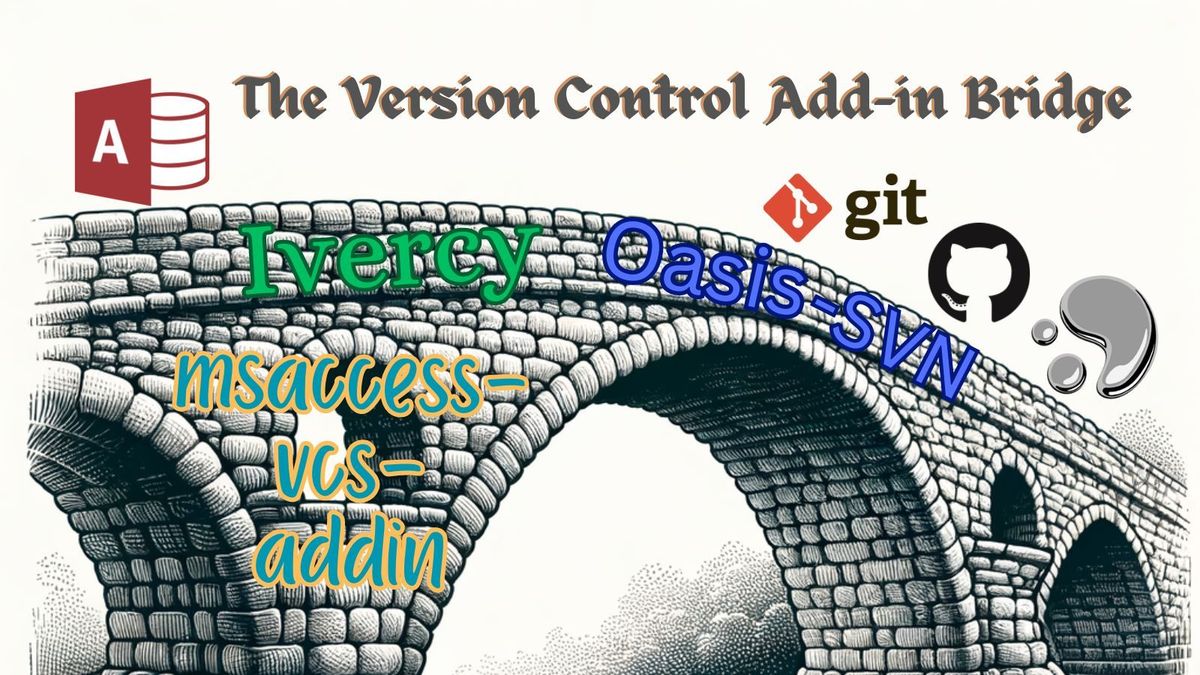
All it does is convert your Access applications to text files. You need a version control tool to manage the changes you make to those files over time. For all intents and purposes, git is that tool. But git itself is just a series of command-line commands with arcane syntax; it is not beginner-friendly.
GitHub Desktop
Luckily, there are several graphical interfaces that will manage those arcane command-line calls for you.
I use GitHub Desktop because it integrates so seamlessly with GitHub. GitHub is where you will want to store copies of your repositories. GitHub is not strictly necessary; you can use Git without GitHub. But having your code cloned to GitHub opens up a whole world of AI-driven workflows that are not easily available to you otherwise.
GitHub CLI
While GitHub Desktop is straightforward to use, I have a confession to make: I rarely use it.
Instead, I let Claude Code do most of my Git and GitHub dirty work.
As I mentioned earlier, I am a longtime Mercurial user. I love TortoiseHg (the Mercurial GUI). And while most of the concepts between Mercurial and Git are similar, I always get an intense "uncanny valley" effect when working with Git directly. Luckily, I don't have to.
While I am no expert in Git, guess who is? My buddy Claude, that's who!
The trick to using Git with AI is to start by telling the AI agent your level of comfort with Git. If you tell it you are an absolute beginner, it will help walk you through the basics. If you tell it you are an expert, it may push back on an unusual request but will be more likely to let it go since presumably you know what you are doing.
The Claude Code Add-in for VS Code
The default user interface for Claude Code is the terminal.
This makes Claude Code exceptionally flexible, but I prefer to work in an environment that shows a visual representation of the project's folder structure and overall has more frills and polish than a bare command-line terminal.
The Claude Code Add-in for VS Code is the best of both worlds. It offers polish while remaining (relatively) lightweight.
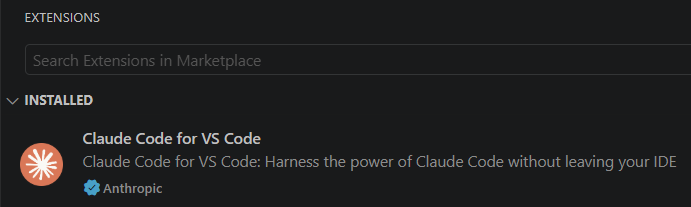
Be sure to use the official add-in from Anthropic (note the blue check mark icon next to "Anthropic" in the lower-left of the above screen).
Linear
Linear is an issue tracking database and software project management tool.
 Gabriel PealOpenAI
At the beginning of this year, we migrated from FogBugz to Linear. We had been with FogBugz for over 15 years, but the last 5 or so years were due more to vendor lock-in than actual feature set. The migration was annoying, though relatively painless thanks to the herculean efforts of our intern, Jonah Legg, who used AI to help write a from-scratch custom migration tool that incorporated the FogBugz and Linear APIs.
While Linear is not strictly necessary, having a project- and issue-tracking tool like this (e.g., Jira, Asana, or even GitHub issues) unlocks some advanced agentic AI workflows that I will cover in future articles.
Obsidian
Markdown is a lightweight text markup language that has become the lingua franca of the AI age.
Markdown is lightweight, so it consumes very few additional tokens vs. pure text files, making it a great machine-readable format.
Markdown can also be rendered as rich text, though, making it a great human-readable format.
What you will likely find is that these Markdown files will tend to proliferate. Having a good tool to read and edit these files will prove invaluable. VS Code itself has great built-in support for Markdown files, but they tend to get mixed in and buried among all of your other source code text files.
When I want to browse and read multiple Markdown files in a project folder, though, I reach for Obsidian:

As a purpose-built Markdown viewer and editor, Obsidian does a great job of boosting the signal-to-noise ratio when browsing a large folder with many Markdown files.
The application itself is free. The company offers paid tiers that mostly provide Markdown file syncing, which you won't need.
*All text in this article written by a 100%-certified free-range human.

