> ## Content Index
> Fetch the complete content index at: https://nolongerset.com/llms.txt
> Use this file to discover other available public pages before exploring further.
# VBA Code Generation Trick
- URL: https://nolongerset.com/vba-code-generation-trick/
- Published: 2020-12-13T03:08:25.000Z
- Updated: 2026-05-08T13:07:26.000Z
- Description: Using Notepad++ to transform existing code into a VBA string that generates itself.
- Author: Mike Wolfe
- Tags: Intermediate, Tools, #Import 2026-05-20 02:59
In yesterday's article about [copying and pasting code](https://nolongerset.com/copying-and-pasting-code-with-purpose/), I promised to reveal the Notepad++ trick I use for turning an existing block of code into a string that can be printed to the immediate window or saved directly into a code module.
For example, let's use this code from a [recent article](https://nolongerset.com/bang-dot-default/) on the difference between the bang (`!`) and dot (`.`) operators:
```vba
Option Compare Database
Option Explicit
Private Sub Command2_Click()
Debug.Print "Bang: "; Me!tbText0
Debug.Print "Dot: "; Me.tbText0
Debug.Print "Default: "; tbText0
End Sub
```
How do we transform the above code into the routine below?
```vba
'Build multi-line VBA string
Sub GenerateCode()
Dim s As String
s = s & "Option Compare Database" & vbNewLine
s = s & "Option Explicit" & vbNewLine
s = s & vbNewLine
s = s & "Private Sub Command2_Click()" & vbNewLine
s = s & " Debug.Print ""Bang: ""; Me!tbText0" & vbNewLine
s = s & " Debug.Print ""Dot: ""; Me.tbText0" & vbNewLine
s = s & " Debug.Print ""Default: ""; tbText0" & vbNewLine
s = s & "End Sub" & vbNewLine
s = s & vbNewLine
Debug.Print s
End Sub
```
### Improving the process with Notepad++
Performing such a transformation manually would be tedious and error-prone. Instead, I copy the code into Notepad++, perform a few find and replace functions, then copy it back into the VBE.
1. Find: `"`
Replace: `""`
Search mode: (o) Normal
\[Replace All\]
2. Find: `^(.*)$`
Replace: ` s = s & "$1" & vbNewLine`
Search mode: (o) Regular expression
\[Replace All\]
3. Find: `& "" & vbNewLine`
Replace: `& vbNewLine`
Search mode: (0) Normal
\[Replace All\]
4. \[Ctl\] + \[Home\]
Type: ` Dim s As String`
\[Enter\] to add a blank line
### Automating the process with Notepad++
The above steps are better than manually typing all the boilerplate, but it's still quite a bit of manual effort. I'm lazy, so I looked for another way to improve the process. Enter the **[Macro Recording](https://npp-user-manual.org/docs/macros/)** feature of Notepad++.
To record a macro we can run again in the future, we just need to add a few steps to the above process:
1. Macro -> Start Recording
2. See above
3. See above
4. See above
5. Macro -> Stop Recording
6. Macro -> Save Current Recorded Macro...
Name: *Build multi-line VBA string*
\[OK\]
### Testing the macro
To test the Notepad++ macro we just recorded, follow these steps:
1. Copy normal code from VBA
2. Paste into an empty Notepad++ tab
3. **Macro -> Build multi-line VBA string**
4. Copy the text from the Notepad++ tab
5. Paste into a new VBA routine
### Direct import
If you want to avoid the macro recording steps altogether, you can directly import the macro actions into the appropriate text file. Notepad++ macros are defined within `%AppData%\Notepad++\shortcuts.xml`.
Here's what my file looks like after recording the macro:
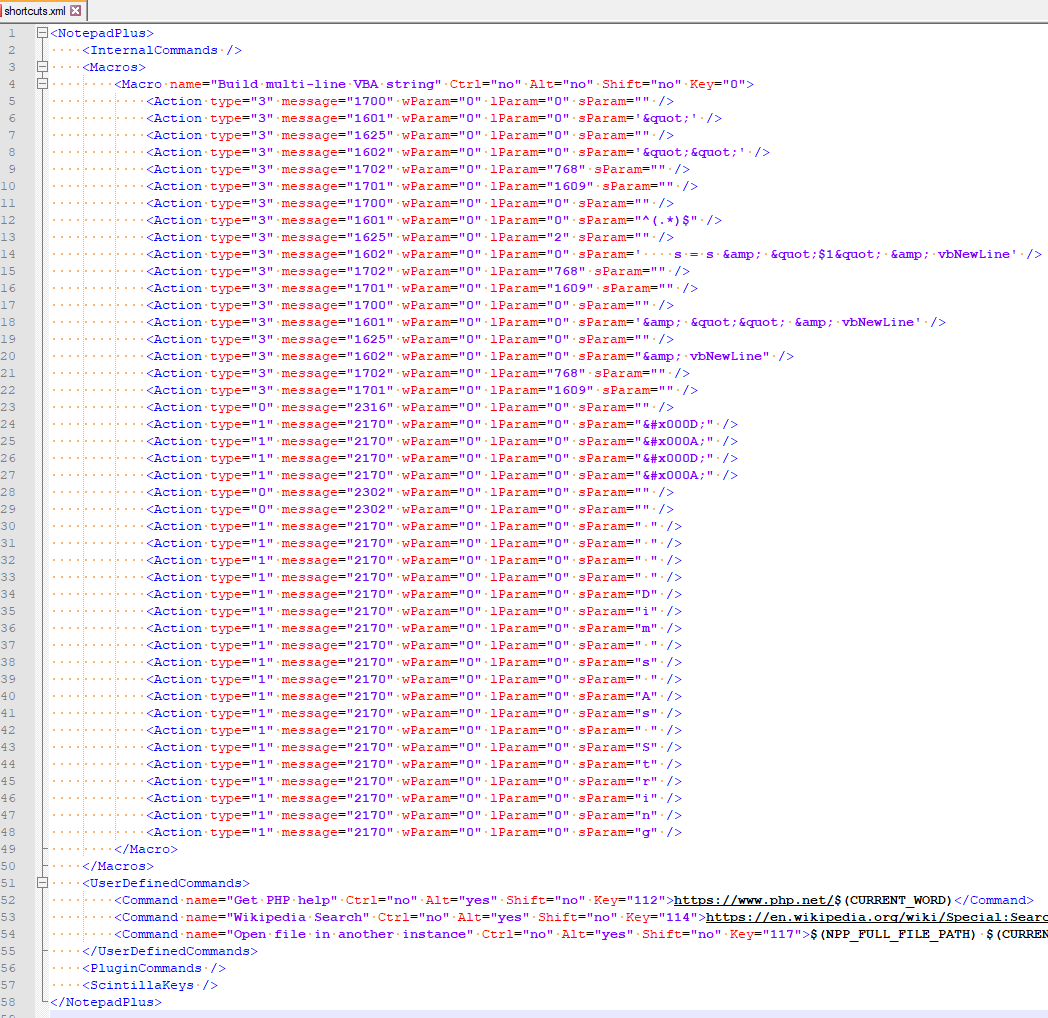
There's no way to import/export a macro through the user interface, but you can directly edit the *shortcuts.xml* file itself.
If you have not recorded any Notepad++ macros, you will need to split the Macros tag into two separate tags. From this...
```
```
...to this...
```
```
Then, copy and paste the following text in between the *Macros* tags:
```
```
Save the file. Then close and re-open Notepad++. The new macro should now be available in the Macro menu.
*Base image by [World-fly](https://pixabay.com/users/world-fly-856412/?utm%5Fsource=link-attribution&utm%5Fmedium=referral&utm%5Fcampaign=image&utm%5Fcontent=1558811) from [Pixabay](https://pixabay.com/?utm%5Fsource=link-attribution&utm%5Fmedium=referral&utm%5Fcampaign=image&utm%5Fcontent=1558811) (modified by Mike Wolfe)*